My first Chrome extensions: meet DotLens and DotSnap
My first extensions are now available on the Chrome Web Store. DotLens helps gather information to troubleshoot issues on web pages, and DotSnap lets you take screenshots and add annotations. Let me walk you through how each one works.
My first two extensions are now available on the Chrome Web Store: DotLens and DotSnap.
Both were born around tasks that come up when working with web pages. One helps gather information when something fails. The other lets you capture what you see on screen and add notes to explain it better.
Here's what each one does and the situations where it can help you.
DotLens: information to investigate problems on a page
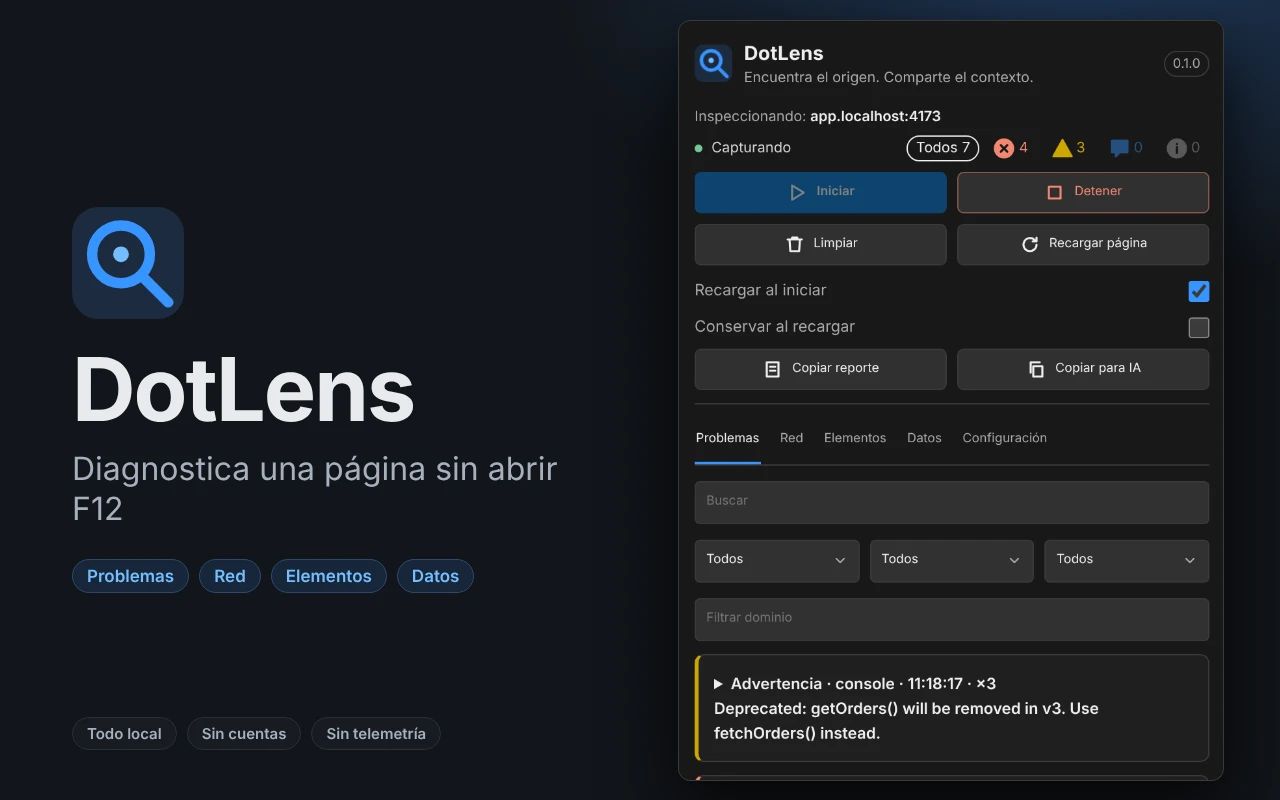
When a page fails, the first message the support team often gets is: "The button doesn't work" or "it just keeps loading."
That message tells you there's a problem, but there's still not enough context to start investigating it. Did an error show up? Did the page try to load information and get no response?
That's why I created DotLens. It's an extension that opens a side panel in Chrome and gathers information from the tab you choose. There you can review errors, warnings, and details of the requests the page makes.
For example, if a form doesn't respond when you submit it, you can open DotLens, start the capture, and try the action again. Then you can copy a report with the information gathered and share it with the person who will provide support.
DotLens is designed primarily for developers and technical teams. If you own a business and work with someone who maintains your site, the report can give them more context to start looking into the problem.
It also includes an option called "Copy for AI", which prepares the information to paste into the artificial intelligence tool of your choice. DotLens does not connect to any model on its own.
Check out DotLens on Chrome Web Store
DotSnap: capture and explain what you see
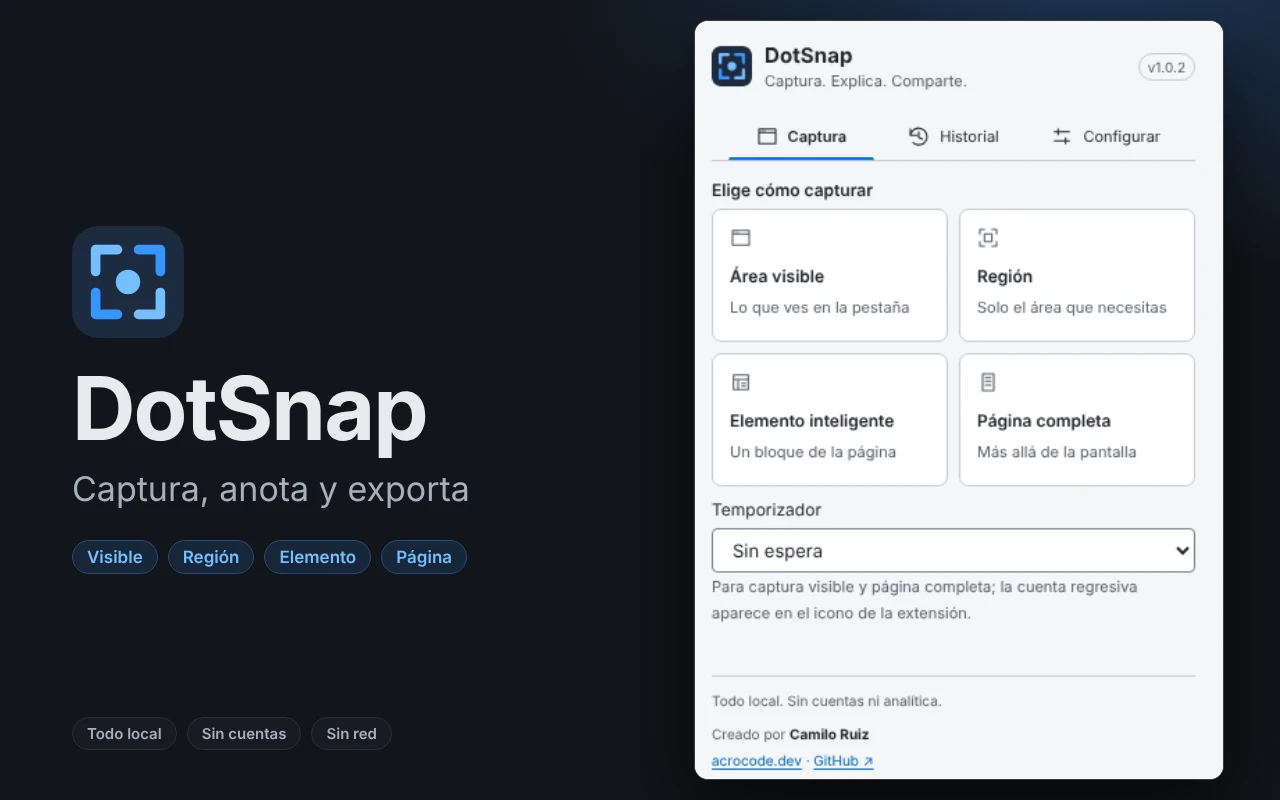
The second extension is DotSnap, a tool for taking screenshots and adding annotations to them from your device.
You can capture the visible part of a page, select a region, choose a specific element, or save a full page. Then you can add arrows, text, highlights, or numbered steps.
For example, you're reviewing your online store and find a price that needs to be corrected. With DotSnap you can capture that section, point out the price, and send the image to the person in charge. That way they can see where the change you need is.
It can also help you prepare instructions for your team. If someone needs to learn how to complete a task on a page, you can capture the steps and number them on the image.
DotSnap has options to cover information before sharing a screenshot. One of them is opaque black fill: the pixels you covered with that fill are not left in the exported file.
You can save your screenshots in different formats, including PDF. DotSnap is free and works on your device, with no need to create an account.
Check out DotSnap on Chrome Web Store
Which one do I recommend you try?
It depends on what you need to do:
- DotLens: if you or your technical team need to gather information to investigate an issue on a page.
- DotSnap: if you want to capture a screen, point something out, or put together visual instructions.
Both are now available on the Chrome Web Store. You can visit their listings to learn more and add them to Chrome.
What I take away
I'm glad to share these first extensions. There's a lot of work behind each one, and now comes a part I'm also interested in: finding out how they work in other people's hands.
If you try one and run into a problem or have a suggestion, you can leave it on the support site listed on its page. It'll help me keep improving them.